Lantern · Help
How to use LanternEvery feature, with steps, a real example and a picture of what you will see
Lantern is free and needs no account. Start with one of the three common tasks below, or open any topic to learn one feature at a time.
Start here
01Search and the mapFind any place, or color the U.S. map by one question
What it does
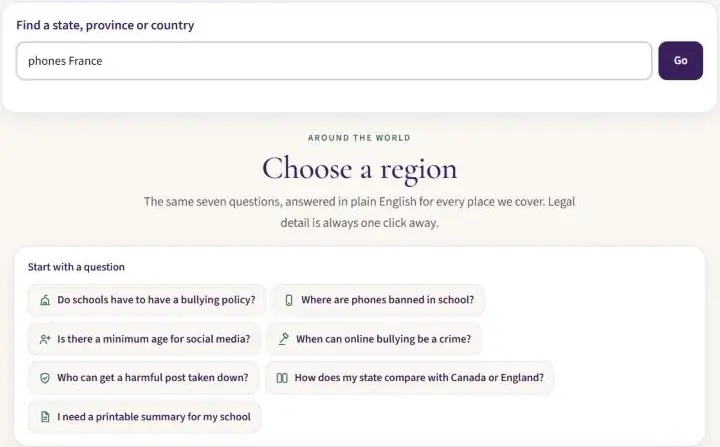
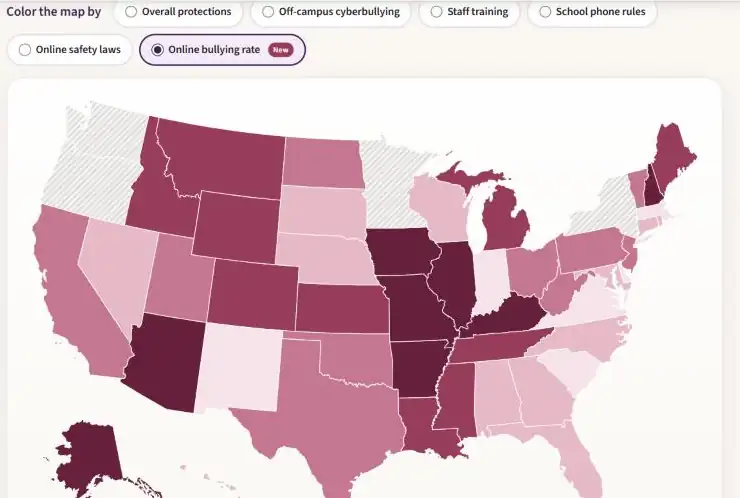
The search box at the top of Lantern finds any U.S. state, Canadian province, or country we cover. You can add a topic word, such as “phones” or “age,” to jump straight to that answer. The U.S. map shows every state at once, colored by the question you choose.
When to use it
Use search when you know the place. Use the map when you want to see patterns, such as which states cover off-campus cyberbullying.
Steps
- Go to the Lantern home page.
- Type a place in Find a state, province or country. Add a topic word if you like.
- Press Go, or choose a suggestion from the list.
- To use the map, scroll down to Color the map by and pick a question. Click any state to open it.
Example
Type phones France and press Go. Lantern opens France’s page at the answer about phones in school. No topic word? You start at the top of the page.
02State and country profilesThe bottom line first, legal detail one click away
What it does
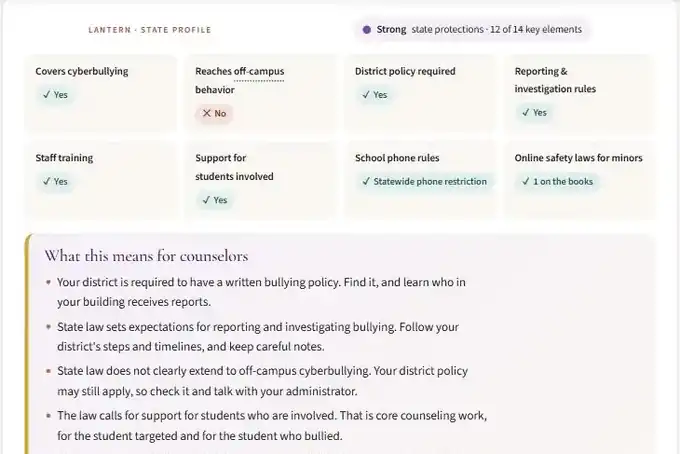
Every place has a profile. It opens with a short rating, a grid of yes/no answers to the same key questions, and a box called What this means for counselors. Below that, each answer links to the official law.
When to use it
Use a profile before a meeting with a family or administrator, or when you need to know what your school must do.
Steps
- Open a place from search or the map.
- Read the rating and the answer grid at the top.
- Read What this means for counselors for plain-language next steps.
- Open a question further down for the legal detail and the link to the law. Each page shows when it was last checked.
Example
Ohio’s profile rates its protections as Strong. The grid shows that state law covers cyberbullying but does not clearly reach off-campus behavior. So the counselor box suggests checking your district’s own policy for incidents that start outside school.
03District lookup by ZIPEvery U.S. public school district, without leaving the site
What it does
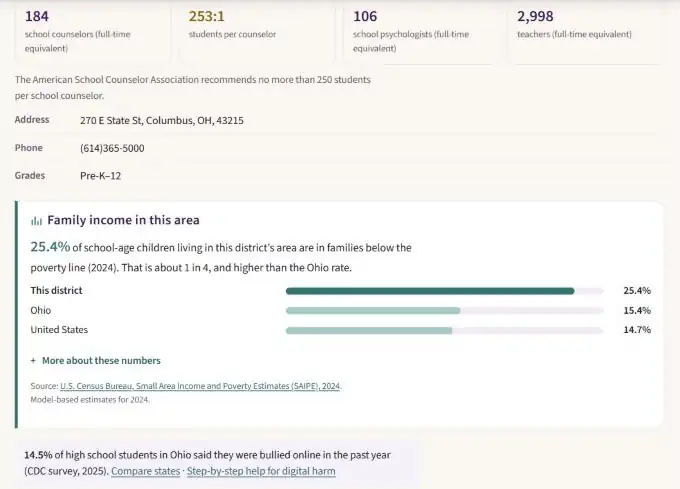
Type a five-digit ZIP code to see the school districts that serve it. Each district card shows its staff numbers, students per counselor, contact details and the share of school-age children in families below the poverty line.
When to use it
Use it to understand a district’s staffing before you plan support, or to find the right district office to contact.
Steps
- On the Lantern home page, type a ZIP code in the search box.
- Choose your district from the list.
- Read the staffing numbers across the top of the card.
- Open More about these numbers under Family income in this area for the source and what the estimate means.
Example
Type 43215 and choose Columbus City Schools. The card shows 253 students per school counselor. The American School Counselor Association recommends no more than 250. It also shows that about 1 in 4 school-age children in the area live in families below the poverty line, higher than the Ohio rate.
04Online bullying rates and povertyHow common it is, and whether income seems to matter
What it does
Lantern shows how many students said they were bullied online, by state and for many countries. The U.S. figures come from the CDC’s Youth Risk Behavior Survey. Countries use surveys from the World Health Organization and others. A chart compares each state’s rate with its child poverty rate.
When to use it
Use rates to make the case for prevention work, in a grant or a school board talk. Always name the survey and year.
Steps
- On the map, choose Color the map by: Online bullying rate.
- Or open the Digital harm guide and find the rates section.
- Click a state for its rate, the survey year and a comparison.
- Open Does child poverty go with online bullying? to see the chart.
Example
In Ohio, 14.5% of high school students said they were bullied online in the past year (CDC survey, 2025). Across states, there is almost no pattern between child poverty and online bullying rates, so poverty alone does not predict where it happens.
05“What happened?” checklistSteps to take now, who to report to and what the law says
What it does
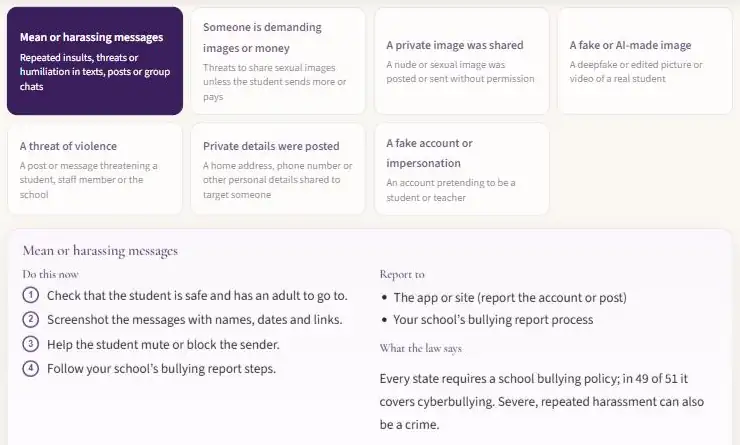
The checklist in the Digital harm guide covers seven common situations, from mean messages to sextortion. Pick one and Lantern shows what to do first, where to report it and a short summary of the law.
When to use it
Use it right after a student or family tells you something happened online. It never asks for names or any details about the student.
Steps
- Open the Digital harm guide.
- Under What happened?, choose the card that fits best.
- Work through Do this now in order.
- Use Report to and What the law says to plan the next step with your administrator.
Example
A student shows you a group chat full of insults. Choose Mean or harassing messages. Lantern tells you to check the student is safe, screenshot the messages with names, dates and links, help them block the sender, and follow your school’s bullying report steps.
In an emergency, call 911. For sextortion or shared images of a minor, report to the FBI at tips.fbi.gov or to NCMEC’s CyberTipline at report.cybertip.org.
06Compare and reportsPlaces side by side, a printable report and rankings
What it does
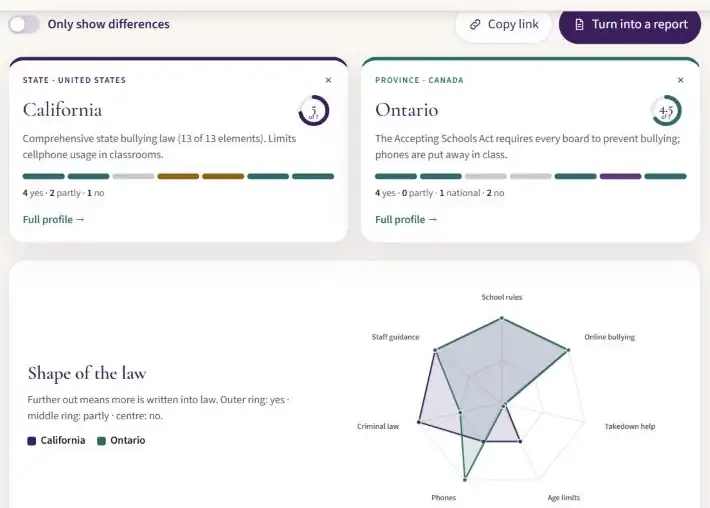
The Compare page puts places side by side, including places in different countries. It has three tabs: Compare, Report generator (build and print a PDF) and Rankings (every place by protection score).
When to use it
Use it to show a school board how your state compares with its neighbors, or to hand out a one-page report at a training.
Steps
- Open Compare & reports.
- Add two or more places.
- Turn on Only show differences to hide the answers they share.
- Press Copy link to share this exact comparison, or Turn into a report to print it. In the print window, choose Save as PDF.
Example
Compare California and Ontario. California scores 5 of 7 and Ontario 4.5 of 7. The Shape of the law chart shows where they differ: for example, Ontario puts phones away in class across the province.
07Your-state links and email alertsKeep your state one click away, and hear when its law changes
What it does
Choose your state once and a slim bar under the menu keeps three links handy on every Lantern page: Its law, Online bullying rate and What to do. Your choice is saved only in your own browser. Separately, each place page has a free email alert that tells you when its law changes.
When to use it
Use the bar if you mostly work in one state. Sign up for alerts if you train staff or write school policy.
Steps
- In the Your state bar, choose your state from the list.
- Use the three links whenever you need them. Press Change to pick another state.
- For alerts, open your state’s page and scroll to the email sign-up near the bottom.
- Enter your email, tick the consent box and press the button. You can unsubscribe at any time.
Example
A counselor in Columbus picks Ohio. From then on, What to do opens the digital harm checklist and Online bullying rate opens Ohio’s figure, from any Lantern page.
08Printing, data and citingQuick-start handout, spreadsheet download, citations and the DOI
What it does
The Quick-start is a one-page handout for staff trainings. At the bottom of every place page you can Download the full atlas (CSV) and Copy citation (APA).
When to use it
Print the quick-start for a staff meeting. Download the data for research or a class. Copy the citation for a paper or presentation.
Steps
- For the handout, open the Quick-start and press Print or save as PDF.
- For data or a citation, scroll to the bottom of any state or country page.
- Press Download the full atlas (CSV). It opens in Excel or Google Sheets.
- Press Copy citation (APA), then paste. It includes today’s date and the page link.
- For MLA, Chicago, BibTeX or the DOI, open How to cite Lantern.
- If you use Lantern in your work, complete the Lantern use survey (about 6 minutes).
Example
A graduate student copies the citation on Ohio’s page and gets an APA reference to Lantern with the date retrieved and the Ohio link. The data is free to reuse for non-commercial purposes with credit. To cite Lantern as a whole, use its permanent DOI, 10.5281/zenodo.24176693.
09Why the numbers differDifferent surveys ask different students different questions
Online bullying rates can look very different from one source to another. That is usually because of how the survey was done, not because one number is wrong. Surveys differ in the ages they ask, the wording of the question, the time period (“in the past year” or “in the past two months”) and the year.
Lantern always names the survey, the age group and the year next to each number. To compare two places fairly, use numbers from the same survey. Look for Why do the numbers differ? in the rates section for a full, open-and-close explanation.
Example
A U.S. state figure is for high school students over the past year. A European figure may be for 11- to 15-year-olds over the past two months. Both are correct, but they measure different things.
10AccessibilityKeyboard, screen readers, dark mode and printing
- Keyboard: use Tab to move and Enter or Space to choose. On the Compare page, the left and right arrow keys move between tabs.
- Skip the map: the first link on the U.S. map page jumps past the map to the results, so you never have to use the map itself.
- Screen readers: every answer is written as text, never only as a color. Search results are announced as they update.
- Dark mode and motion: Lantern follows your device’s dark mode setting and turns off animation if your device asks for reduced motion.
- Text size: zoom your browser (Ctrl and + on Windows, Cmd and + on Mac). Pages reflow to fit.
- Print: profiles, reports and the quick-start all print cleanly on plain paper.
If something does not work for you, please tell us so we can fix it.
11Ask LanternType a question in your own words and get Lantern’s answer
What it does
The Ask Lantern button sits in the bottom corner of every Lantern page. Type a question the way you would say it, and it finds the matching answer on Lantern’s own pages, with the yes/no answer, a short explanation, the official source and a link to the full page.
What it is not
It is not a chatbot and it does not write new answers. If Lantern doesn’t cover something, it says so instead of guessing. It is educational information, not legal advice.
Steps
- Press Ask Lantern, or press the / key on a keyboard.
- Type a question, such as “Is cyberbullying a crime in Texas?”
- Read the answer, open “More detail”, or follow the source link.
- Ask a follow-up like “what about Ohio?” or “and phones?”. It remembers what you were asking about.
Examples to try
“Can a school discipline a student for a TikTok posted at home in Ohio?” · “What do I do about sextortion?” · “Compare Ohio and Ontario” · “Which states ban phones?” · “How common is online bullying in California?”
Your privacy
- What you type stays in your browser. Lantern looks up the answer on your own device.
- Please leave out students’ names and other identifying details.
- “Did this help?” sends only which answer was shown, never what you typed.
- If Lantern can’t answer, you can choose to send your question so it can learn. Names and numbers are removed first, and you see exactly what will be sent before you press Send.
- Your state and recent questions are saved only in this browser. The ↻ button starts over.
How it gets better
Dr. Rath reviews the questions people choose to send and teaches Lantern new words and phrases, such as “bell to bell” for school phone rules. Every answer still comes from Lantern’s checked pages.